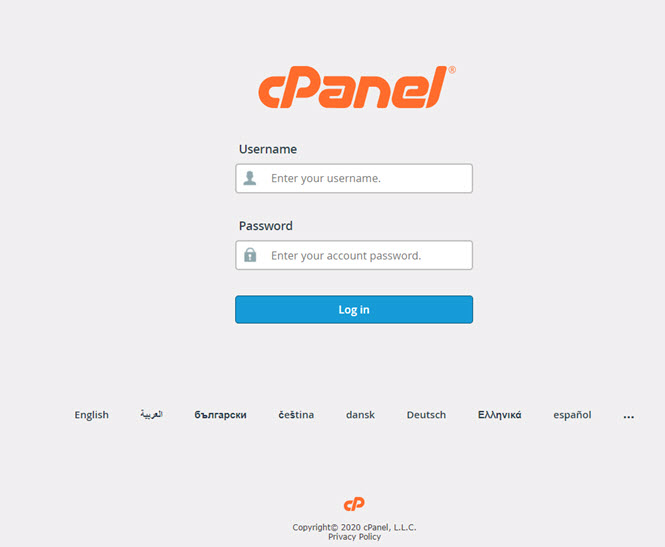
Unable to login cPanel and FTP in linux server – If you’re unable to log in to cPanel and FTP on your Linux server, there could be various reasons for the issue.
Unable to login cPanel and FTP – Here are some troubleshooting steps to help you identify and fix the problem:
1. Check Credentials:
- Verify that you are using the correct username and password for both cPanel and FTP.
2. Connectivity Issues:
- Ensure that your server has a stable internet connection.
- If you’re connecting remotely, check if there are any network/firewall issues blocking the connection.
3. Firewall Configuration:
- Confirm that the server’s firewall (e.g., iptables) is not blocking access to cPanel and FTP ports. The default ports are usually 2082 or 2083 for cPanel and 21 for FTP.
4. Service Status:
- Check if the cPanel and FTP services are running on your server.
- Use the following commands to check and restart services:
systemctl status cpanel
systemctl restart cpanel
systemctl status vsftpd # For FTP (may vary based on your FTP server)
systemctl restart vsftpd
5. Check Logs:
- Review the server logs for any error messages related to cPanel and FTP. Common log locations include
/var/log/messages,/var/log/secure, and FTP-specific logs.
6. Disk Space:
- Ensure that your server has sufficient disk space. A lack of disk space can cause login issues.
7. Password Reset:
- If you suspect a password issue, consider resetting the cPanel and FTP passwords.
8. SSH Access:
- If you have SSH access to the server, try logging in via SSH to see if the issue is specific to cPanel and FTP or a broader authentication problem.
9. cPHulk Brute Force Protection:
- Check if cPHulk Brute Force Protection is enabled in cPanel. It may lock out users after multiple failed login attempts. You can whitelist your IP or unlock the account if necessary.
10. Permissions:
- Verify the file and directory permissions for cPanel and FTP users. Incorrect permissions might prevent logins.
11. Server Load:
- High server load can affect performance. Check the server load using the
topcommand and address any performance issues.
12. Contact Hosting Provider:
- If your server is managed by a hosting provider, reach out to their support for assistance.

Unable to login cPanel and FTP – Remember to exercise caution when making changes to your server, especially if you’re not familiar with the commands and configurations. If the issue persists, consider seeking assistance from a system administrator or your hosting provider to ensure proper resolution and avoid potential data loss or service disruptions.
How to Fix: Could Not Connect to Server in FileZilla
The free FTP ( Free Transfer protocol) solution, FileZilla is open-source software that helps transfer files from a local computer to a remote one. Filezilla also supports Secure file transfer protocol, ie SFTP, and is available as in both client and server versions. At ServerAdminz, our server engineers get queries asking how to resolve the critical error: could not connect to the server in FileZilla. Hence, we thought of writing an article about the server connection issue, which would help you get to resolve the critical error on your own. But, before going deeper into the troubleshooting steps, let’s have a look at some best features of FileZilla and the steps to set up a server connection.
Features of FileZilla:
- FileZilla allows content comparison of the local directory and remote directory.
- The status of transferred files and files in the queue is displayed in FileZilla.
- A list of FTP servers and their associated data are created and stored by the site manager.
- Offers drag and drop method and allow modifications in file and folders.
Steps To Establish Server Connection and Transferring Files Using FileZilla:
- Select the installed Filezilla from the menu bar.
- Open the Files and select Site Manager.
- Choose New site from the box that appeared.
- Select SFTP – SSH File Transfer Protocol in Protocol box.
- Enter the server address you want to connect in the Host box and Port box with 22.
- Fill the user name assigned for you in the User box and Select Connect.
- If you trust the host, you are free to navigate to the next step by selecting always trust this host and Then click OK.
- Enter the password to connect and Then OK.
Unable to login cPanel and FTP – When FileZilla Opens, you will see a box appearing. On the left side is your local computer and on the right side, the remote site. You are now able to transfer files by the drag and drop method or by copying files. If you face any problem during the installation, server connection, or file transfer using Filezilla, contact your server administrators to get help. ServerAdminz stands as a premium server management company that offers top-notch server support services to all levels of enterprises.
If you are done with your successful installation, there may a chance of facing some technical issues while connecting to the FTP or SFTP. Generally, these issues come with incorrect login credentials or wrong remote connection methods. Here, let us discuss some other causes for the occurrence of the critical error: could not connect to server in FileZilla.
