Understanding and Fixing the “Internal Server Error” on Your Website
Internal Server Error – One of the most frustrating issues that website owners and visitors face is the dreaded Internal Server Error. This error, often displayed as a simple “500 Internal Server Error,” can appear unexpectedly and leaves you wondering what went wrong with your site. Whether you’re a website owner, developer, or just a user, understanding this error is crucial for troubleshooting and resolving it quickly.
In this blog post, we’ll break down what an Internal Server Error is, common causes, and how to fix it, so you can get your website back up and running without a hitch.
What is an Internal Server Error?
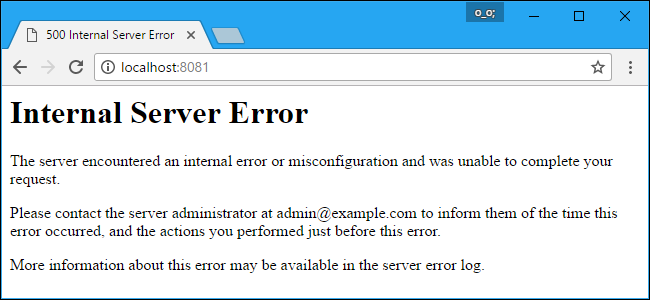
Internal Server Error (500 Error) is a generic HTTP status code that indicates something went wrong on the web server hosting your website, but the server can’t specify the exact issue. Unlike more specific errors (like “404 Not Found”), a 500 error simply means that the server encountered an unexpected condition that prevented it from fulfilling the request.
When you see an “Internal Server Error,” the problem could be due to several reasons, ranging from server misconfigurations to coding issues or even problems with your hosting environment.
Common Causes of Internal Server Errors
- Corrupted .htaccess File
- The .htaccess file is a configuration file used by web servers like Apache. If it becomes corrupted or contains invalid rules, it can trigger an internal server error. This file is essential for URL rewrites, redirects, and other server-side operations.
- PHP Script Errors
- If your website is built using PHP, any syntax errors or logic issues in the PHP scripts could cause a 500 error. This can happen when a script tries to execute an unsupported operation, queries a database incorrectly, or lacks the necessary permissions to perform a task.
- Exceeding Server Resources
- Websites that are hosted on shared servers can run into this issue if they exceed the server’s resource limits (like CPU, memory, or disk space). This can happen if there is a sudden spike in traffic, a poorly optimized script, or a resource-hogging plugin.
- Plugin or Theme Issues (For CMS Users)
- Content Management Systems (CMS) like WordPress, Joomla, or Drupal rely heavily on plugins and themes to extend their functionality. Sometimes, a plugin or theme update can cause compatibility issues, leading to an internal server error.
- File Permissions Issues
- Files and directories on your server need proper permissions to be accessed and executed. If the permissions are misconfigured, it can prevent your server from running necessary files, resulting in a 500 error.
- Server Configuration Problems
- Sometimes, a misconfiguration on the server level can lead to internal server errors. This can include issues with the web server’s configuration files (like Apache’s httpd.conf or Nginx’s nginx.conf) or improper settings in your content management system.
How to Fix the Internal Server Error
- Check the .htaccess File
- Rename the file: Start by renaming the
.htaccessfile to something like.htaccess_oldand then try reloading your website. If the site works after renaming, the issue is with the.htaccessfile. - Create a new file: You can create a new
.htaccessfile if necessary. For WordPress users, for example, the default .htaccess file looks like this:
- Rename the file: Start by renaming the
- Debug PHP Errors
- If you suspect that a PHP script is causing the error, enable error reporting to get more detailed information about the issue. You can do this by adding the following lines to your
wp-config.phpfile (for WordPress) or in the PHP configuration file: - Check the server’s error logs for any PHP errors, which can provide a clue on what went wrong.
- If you suspect that a PHP script is causing the error, enable error reporting to get more detailed information about the issue. You can do this by adding the following lines to your
- Increase PHP Limits
- You can increase your PHP limits by editing your
php.inifile,wp-config.phpfile, or via.htaccess. Add or modify the following lines: - This is particularly useful if the error is caused by exceeding resource limits, such as uploading a large file or executing a script that takes too long.
- You can increase your PHP limits by editing your
- Disable Plugins or Themes (For CMS Users)
- If you are using a CMS like WordPress, start by disabling all plugins to see if one is causing the issue. You can do this by renaming the
pluginsfolder via FTP or your hosting control panel. If the site loads without the plugins, you can then activate them one by one to identify the culprit. - Similarly, switch to a default theme (like Twenty Twenty-One in WordPress) to rule out theme-related issues.
- If you are using a CMS like WordPress, start by disabling all plugins to see if one is causing the issue. You can do this by renaming the
- Check File Permissions
- Make sure that your file and directory permissions are correctly set. Typically, directories should have 755 permissions, while files should have 644 permissions. You can check and modify the permissions using an FTP client or through your hosting control panel.
- Contact Your Hosting Provider
- If you have tried the above steps and are still encountering the error, your web hosting provider may be able to assist. They can check server logs for additional details and may identify server-side issues that you cannot access.
How to Prevent Internal Server Errors in the Future
- Regular Backups: Always have a backup of your website files and database, so you can restore your site if anything goes wrong.
- Update Software Regularly: Keep your CMS, plugins, themes, and any server software up to date to prevent compatibility issues and security vulnerabilities.
- Monitor Server Resources: If you’re on shared hosting, consider upgrading to a more robust hosting plan like a VPS or dedicated server if your website is growing or experiencing increased traffic.
- Use a Staging Environment: Before making significant changes to your website (like installing plugins or updating code), test them in a staging environment to avoid disrupting the live site.
