How to recover deleted files from cPanel?
Recovering deleted files from cPanel can be done using various methods, depending on how your hosting provider has configured backups and what features are available in your cPanel interface. Below are the common methods for recovering deleted files:
Method 1: Using the File Manager’s Trash
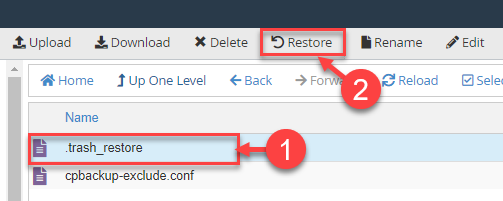
1. Access File Manager:
- Log in to your cPanel account.
- Go to the File Manager under the Files section.
2. Navigate to the Trash:
- In the File Manager, look for the Trash folder in the sidebar.
- If you don’t see it, ensure you have the correct view settings enabled (e.g., Show Hidden Files).
3. Restore Files from Trash:
- Open the Trash folder and locate the deleted files or directories.
- Select the files you want to restore, right-click, and choose Restore.
- The files will be restored to their original location.
Method 2: Using cPanel Backup Feature
1. Access Backup Tool:
- Log in to your cPanel account.
- Go to the Backup or Backup Wizard under the Files section.
2. Restore from a Backup:
- If your hosting provider offers automated backups, you can restore files from these backups.
- Select the backup date you want to restore from.
- Choose the files or directories you want to restore and follow the on-screen instructions to complete the restoration process.
Method 3: Using Softaculous Backup (for Websites Installed via Softaculous)
1. Access Softaculous:
- Log in to your cPanel account.
- Go to Softaculous Apps Installer under the Software section.
2. Restore from Softaculous Backup:
- In Softaculous, go to the Backups and Restore section.
- Locate the backup of your website and click Restore.
- Follow the on-screen instructions to restore your website files from the backup.
Method 4: Contacting Your Hosting Provider
If the above methods do not work or you cannot find the deleted files:
1. Submit a Support Ticket:
- Contact your hosting provider’s support team.
- Provide details about the deleted files and request a restoration from their server backups.
2. Check Backup Policies:
- Ask your hosting provider about their backup policies and the frequency of their backups.
- If backups are available, they should be able to restore the deleted files for you.
Best Practices for Preventing Data Loss
To minimize the risk of data loss and simplify the recovery process in the future, consider implementing the following best practices:
1. Regular Backups:
- Regularly create backups of your website files and databases using cPanel’s Backup tool.
- Store these backups in a secure, offsite location.
2. Use Version Control:
- Implement a version control system (e.g., Git) for your website files to track changes and restore previous versions if needed.
3. Enable Softaculous Backups:
- If you use Softaculous for managing applications, enable automatic backups within Softaculous for additional protection.
4. Monitor Changes:
- Regularly monitor changes to your website files and database to quickly identify and address any unintended deletions or modifications.
By following these steps and best practices, you can effectively recover deleted files from cPanel and ensure the safety and integrity of your website data.
