
Emails not working – Unable To Send Or Receive Emails
There can be various reasons for a user to be unable to send or receive emails, such as,
- The user might have lost the internet connection. Hence, the first step should be to confirm whether the internet connection is up and running.
- If internet access is available, check the email settings. Click on ‘File’ followed by ‘Account Settings.’ Click on the email address to access the settings. (These settings can vary for different service providers.)
- The incoming and outgoing mail server should be ‘mail.yourdomain.com.’ The incoming port numbers depend on the email service provider. For Google, the incoming port number should be 995(POP3) or 993(IMAP). The outgoing port number should be 587 for TLS and 465 for SSL.
- Check if the authentication is turned on for the outgoing server.
-
- Contact Support:
- If you’ve tried the above steps and are still experiencing email problems, contact your email service provider’s customer support for assistance. They can investigate the issue further and provide specific troubleshooting steps or solutions.If issues persist, delete the account, and set it up again.
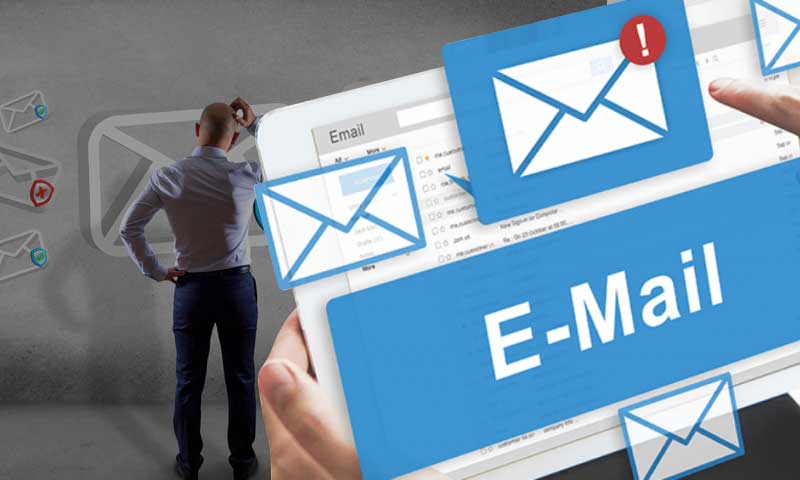 Resolving email issues can involve several troubleshooting steps depending on the specific nature of the problem. Here’s a general guide on how to resolve common email problems:
1. Check Email Settings:
- Verify Email Configuration:
- Ensure that your email client (e.g., Outlook, Gmail) is configured correctly with the appropriate email server settings, including incoming and outgoing server addresses, port numbers, encryption methods (SSL/TLS), and authentication credentials (username and password).
2. Verify Internet Connection:
- Check Internet Connectivity:
- Make sure you have a stable internet connection. Try accessing other websites or online services to verify connectivity.
3. Check Email Server Status:
- Verify Email Server Status:
- Check if the email server (incoming and outgoing) is experiencing any downtime or service interruptions.You can check the status of the email server by contacting your email service provider or checking their status page if available.

- Check if the email server (incoming and outgoing) is experiencing any downtime or service interruptions.You can check the status of the email server by contacting your email service provider or checking their status page if available.
4. Check Email Quota:
- Verify Email Quota:
- Ensure that your email account has sufficient storage space available. If your email account exceeds its quota, you may not be able to send or receive new emails.
5. Test Email Account:
- Send Test Email:
- Send a test email to your own email address or to another account to check if you can send and receive emails successfully. This helps verify if the issue is specific to your email account or if it affects all outgoing or incoming emails.
6. Check Spam/Junk Folder:
- Review Spam/Junk Folder:
- Check your spam or junk folder for any incoming emails that may have been incorrectly classified as spam. Mark legitimate emails as “Not Spam” to prevent them from being filtered in the future.
7. Update Email Client:
- Update Email Client Software:
- Ensure that your email client software (e.g., Outlook, Thunderbird) is up to date with the latest patches and updates. Outdated software may have compatibility issues or security vulnerabilities that can affect email functionality.
8. Disable Antivirus/Firewall:
- Temporarily Disable Antivirus/Firewall:
- Temporarily disable any antivirus or firewall software on your computer and check if you can send/receive emails. Sometimes, security software may block email traffic, causing connectivity issues.
9. Contact Email Service Provider:
- Verify Email Configuration:
- If you’ve tried the above steps and are still experiencing email problems, contact your email service provider’s customer support for assistance. They can investigate the issue further and provide specific troubleshooting steps or solutions.If issues persist, delete the account, and set it up again.

Unable To Send Emails But Able To Receive Them
The following steps can resolve the issue.
- Go to ‘Advanced settings’ of the email account and check for the outgoing port number.
- If the issue remains unresolved, open the outgoing SMTP server settings and confirm whether the outgoing mail server and outgoing port number are as mentioned in the above paragraphs. (Please note that the advanced settings require switching on the authentication factor.)
Unable To Receive Emails But Able To Send Them
The following steps can prove helpful.
- The user must try sending an email to their account. If it results in a bounce-back message, check out the error message.
- It can be a disk quota error. Deleting some of the unnecessary emails can help resolve the issue.
- When deleting an email, one should log in to their webmail account and delete unwanted emails. It ensures deletion from the server. It frees up disk space to enable receiving the emails.
- If still there are no emails received, check the incoming email server settings as described earlier.
Receiving Duplicate Emails Consistently
Generally, duplicate emails are not standard. However, if it happens, the following remedial steps are necessary.
- Check the mailbox for rules that could cause duplication of emails. Delete the rules that are not necessary.
- If the user has initiated the email account on multiple devices, they should ensure that the settings are the same on all the devices.
By following these steps, you can diagnose and resolve common email problems effectively. If the issue persists, it may require further investigation by your email service provider’s technical support team.
- Contact Support:
