How to Change the PHP Version in DirectAdmin: A Comprehensive Guide
Change the PHP Version in DirectAdmin – DirectAdmin is a popular web hosting control panel that offers a user-friendly interface for managing web hosting services. One of the essential tasks that you may need to perform as a web administrator or developer is changing the PHP version for your domains or subdomains.
Change the PHP Version in DirectAdmin – Finding it difficult to deal with PHP errors on your website? Planning to downgrade/upgrade PHP Version for your website? You have landed on the right place. In this guide, you will learn to change PHP version on DirectAdmin Server.
Now, let’s check the steps to change the PHP version for your website using DirectAdmin Panel.
This process can help you ensure compatibility with your applications and leverage new PHP features or improvements. In this guide, we’ll walk you through the steps to change the PHP version in DirectAdmin.
Why Change the PHP Version
Before diving into the steps, it’s helpful to understand why you might need to change the PHP version:
- Compatibility: Different applications and scripts have different PHP version requirements. Upgrading or downgrading PHP versions ensures compatibility with your software.
- Security: Newer PHP versions come with security enhancements and bug fixes. Using an outdated version can expose your site to vulnerabilities.
- Performance: Each PHP version includes performance improvements and optimizations, which can help speed up your site.
Prerequisites
- DirectAdmin Access: You need to have access to the DirectAdmin control panel. If you’re a user on a shared hosting environment, you might need to contact your hosting provider if you don’t have access to make these changes.
- Administrator Privileges: To change the PHP version for the entire server, you need administrator access. For individual domain changes, regular user access might suffice.
Changing the PHP Version in DirectAdmin
For a Single Domain
- Log in to DirectAdmin: Open your web browser and log in to your DirectAdmin control panel with your credentials.
- Navigate to Domain Management:
- From the main dashboard, look for the section labeled “Your Account” or similar.
- Click on “Domain Setup” to see the list of your domains.
- Select the Domain:
- Click on the domain for which you want to change the PHP version.
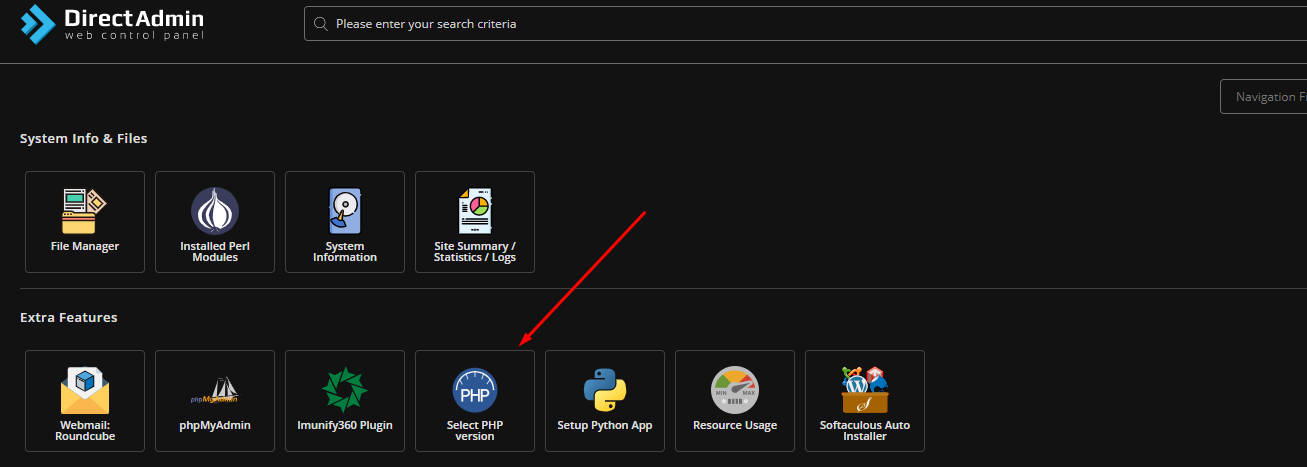
- Access PHP Version Selector:
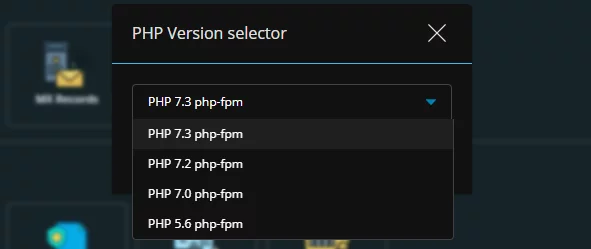
- In the domain management page, look for a section called “PHP Version Selector” or something similar. This is often found under the “Advanced Features” or “Domain Features” section.
- Choose PHP Version:
- A dropdown menu or list will appear showing the available PHP versions.
- Select the PHP version you wish to use from the list.
- Save Changes:
- Click the “Save” or “Apply” button to confirm your changes.
Troubleshooting
- Compatibility Issues: After changing the PHP version, some scripts might not work as expected. Review error logs and update your scripts or configurations as needed.
- Caching: Sometimes changes might not appear immediately due to caching. Clear your browser cache or wait a few minutes.
- Consult Documentation: DirectAdmin documentation or support forums can provide additional assistance if you encounter issues.
Conclusion
Changing the PHP version in DirectAdmin is a straightforward process that can significantly impact the functionality and performance of your web applications. Whether you’re managing a single domain or handling server-wide settings, these steps will help you ensure that your environment remains compatible and up-to-date. Regularly reviewing and updating your PHP version is a good practice to maintain security and performance.
If you have any questions or run into issues, don’t hesitate to reach out to your hosting provider or consult the DirectAdmin support resources.
- Click the “Save” or “Apply” button to confirm your changes.
