
How to host the domain in plesk control panel?
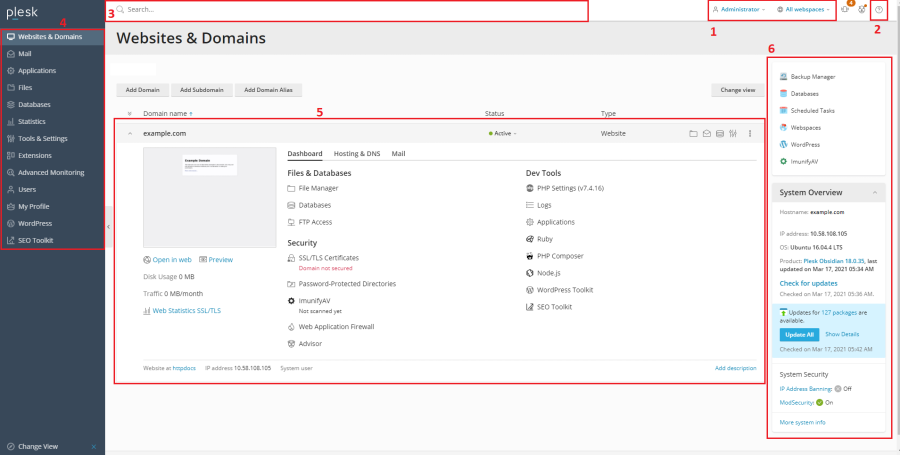
Hosting a domain using Plesk involves several steps to ensure that your website and email services are properly configured. Here’s a step-by-step guide to help you through the process:
1. Access Plesk Control Panel
- Log in to your Plesk control panel using your administrator credentials. This is usually done by navigating to
https://your-server-ip:8443orhttps://your-domain.com:8443.
2. Add a New Domain
- Navigate to the Domains section:
- On the left sidebar, find and click on “Websites & Domains” or “Domains”.
- Add Domain:
- Click the “Add Domain” or “Add Domain” button.
- Enter the domain name you wish to host in the “Domain name” field.
- Choose the subscription or customer if required (depends on how your Plesk is set up).
How to host the domain in plesk control panel?
3. Configure Domain Settings
- Document Root:
- Specify the document root directory for the domain. This is where your website files will be stored. Typically, it’s
/httpdocsfor the primary domain.
- Specify the document root directory for the domain. This is where your website files will be stored. Typically, it’s
- Hosting Type:
- Choose the hosting type, such as “Website Hosting”.
- FTP Account:
- You can set up an FTP account if needed for file management.
4. Set Up DNS Records
- DNS Settings:
- Go to “DNS Settings” or “DNS Zone” for the domain.
- Ensure that DNS records are correctly set up. Plesk typically manages this for you, but you might need to configure or verify records such as
A,CNAME,MX, etc.
- Nameservers:
- Make sure the domain’s nameservers are pointing to your Plesk server. You can configure this with your domain registrar if necessary.

How to host the domain in plesk control panel?
- Make sure the domain’s nameservers are pointing to your Plesk server. You can configure this with your domain registrar if necessary.
5. Upload Your Website
- File Management:
- Use “File Manager” in Plesk or an FTP client to upload your website files to the document root directory.
- Website Setup:
- Ensure your site’s index file (usually
index.htmlorindex.php) is in the root directory.
- Ensure your site’s index file (usually
6. Configure Email (Optional)
- Email Settings:
- If you want to set up email for the domain, go to “Mail” or “Email Accounts”.
- Create email addresses and configure email settings as needed.
7. Test Your Website
- Access the Domain:
- Open a web browser and navigate to your domain to check if your website loads correctly.
- Check DNS Propagation:
- DNS changes may take some time to propagate. You can use online tools to check if DNS records have been updated globally.
8. Secure Your Site
- SSL/TLS Certificate:
- Consider setting up an SSL certificate for your domain. Go to “SSL/TLS Certificates” in Plesk and either purchase or apply for a free certificate (such as Let’s Encrypt).
Troubleshooting Tips
- Domain Not Resolving:
- Check your DNS settings and ensure they are properly configured.
- Website Not Loading:
- Verify that files are correctly uploaded to the document root and check for any server-side errors in Plesk’s logs.
- Email Issues:
- Ensure that MX records are correctly set up and check email configuration settings.
